Skip to content AI Magic in Chrome —
Using
AI Magic in Chrome — window.ai for Local On-Device AI
Introduction
On-device AI in the browser is already arriving. At the moment it is available in Chrome Canary, which means it is likely to become more broadly accessible before long. In this article, I will walk through how to run it locally on your own machine, so you can try it out and think about possible use cases.
Using window.ai locally from DevTools without an internet connection is genuinely fun. Let's look at how it works.
Setup
Download Chrome Canary
Go to the Chrome Canary website and install the latest version:
https://www.google.com/chrome/canary/
Enable Gemini Nano and the Prompt API
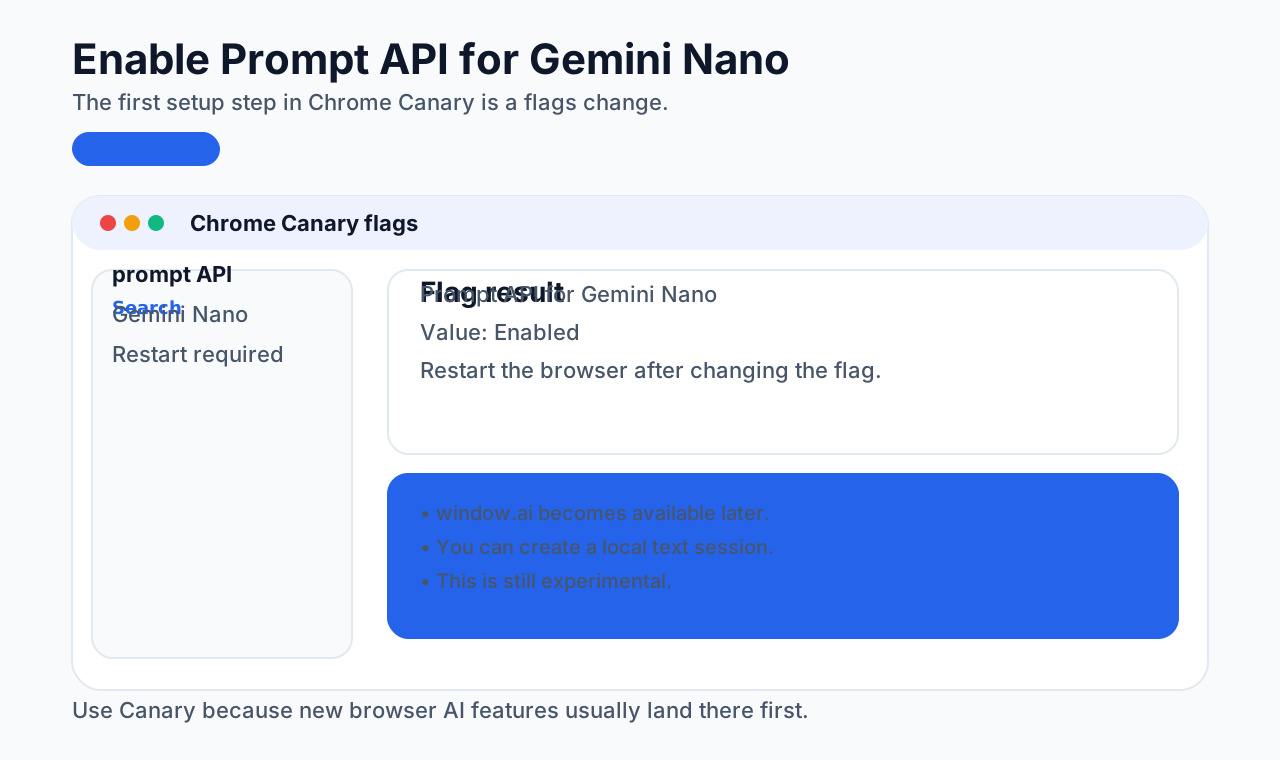
1. Enable Prompt API for Gemini Nano
Open Chrome Canary and visit chrome://flags/.
Search for prompt API.
You should see Prompt API for Gemini Nano. Set it to Enabled, then restart Chrome.
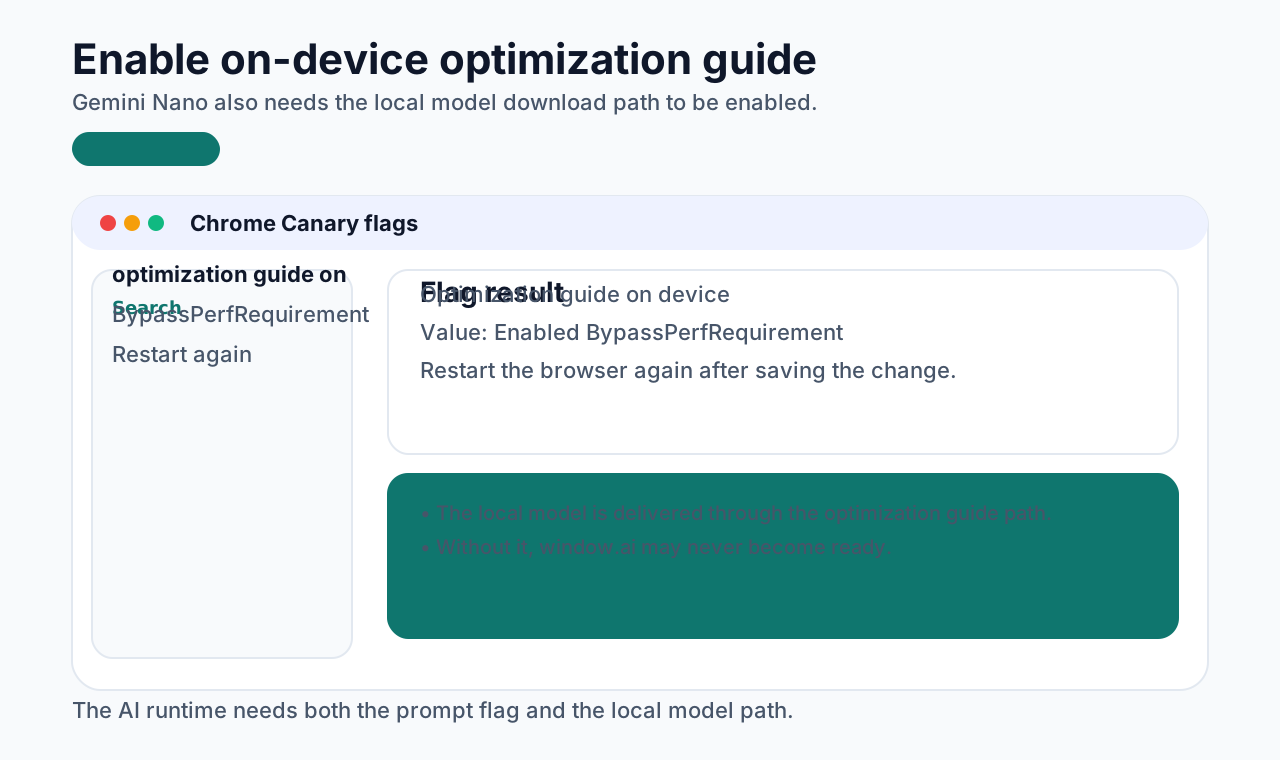
2. Enable on-device optimization guide
Still in chrome://flags, search for optimization guide on.
You should see Enables optimization guide on device. Set it to Enabled BypassPerfRequirement, then restart Chrome again.
That is enough to begin trying local AI in the browser.
Confirm Gemini Nano availability
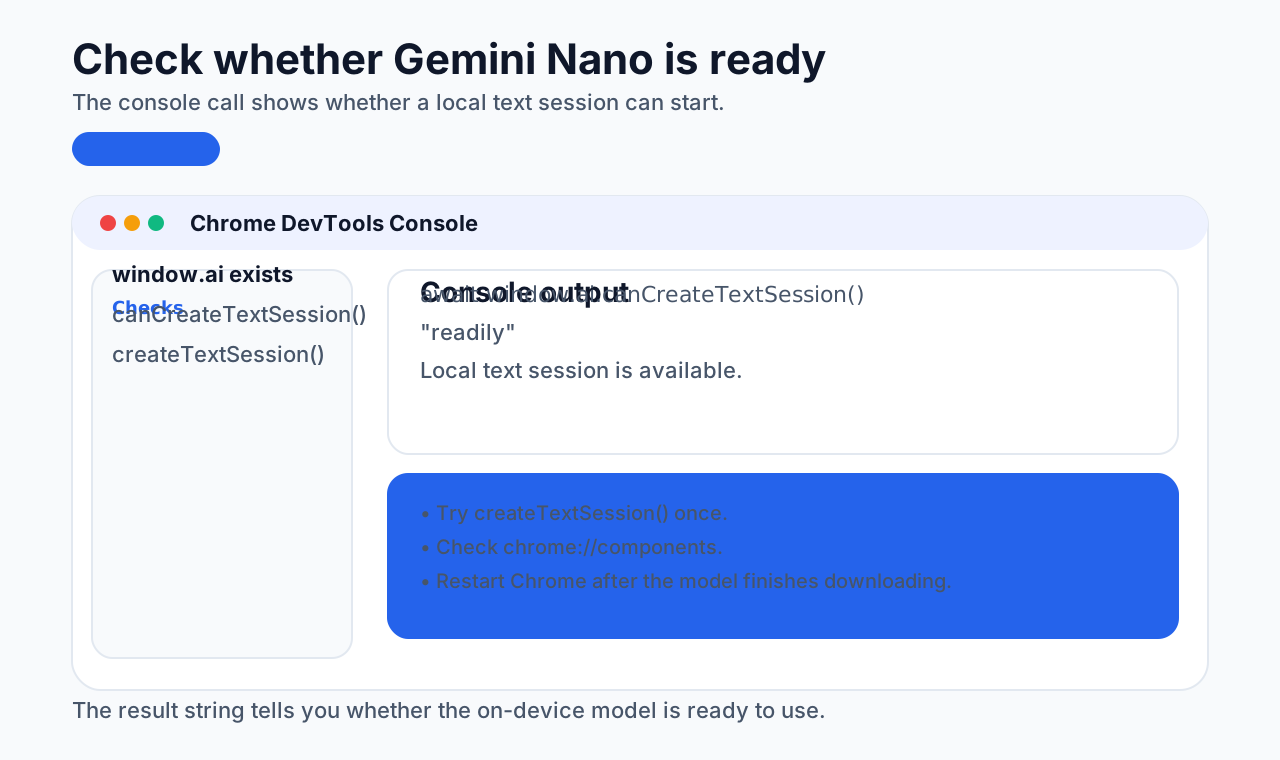
- Open DevTools in Chrome
- In the Console, run:
javascript
await window.ai.canCreateTextSession();If the result is "readily", Gemini Nano is available.
If the result is not "readily", try this:
- Run:
javascript
await window.ai.createTextSession();It may fail the first time. That is expected.
- Restart Chrome.
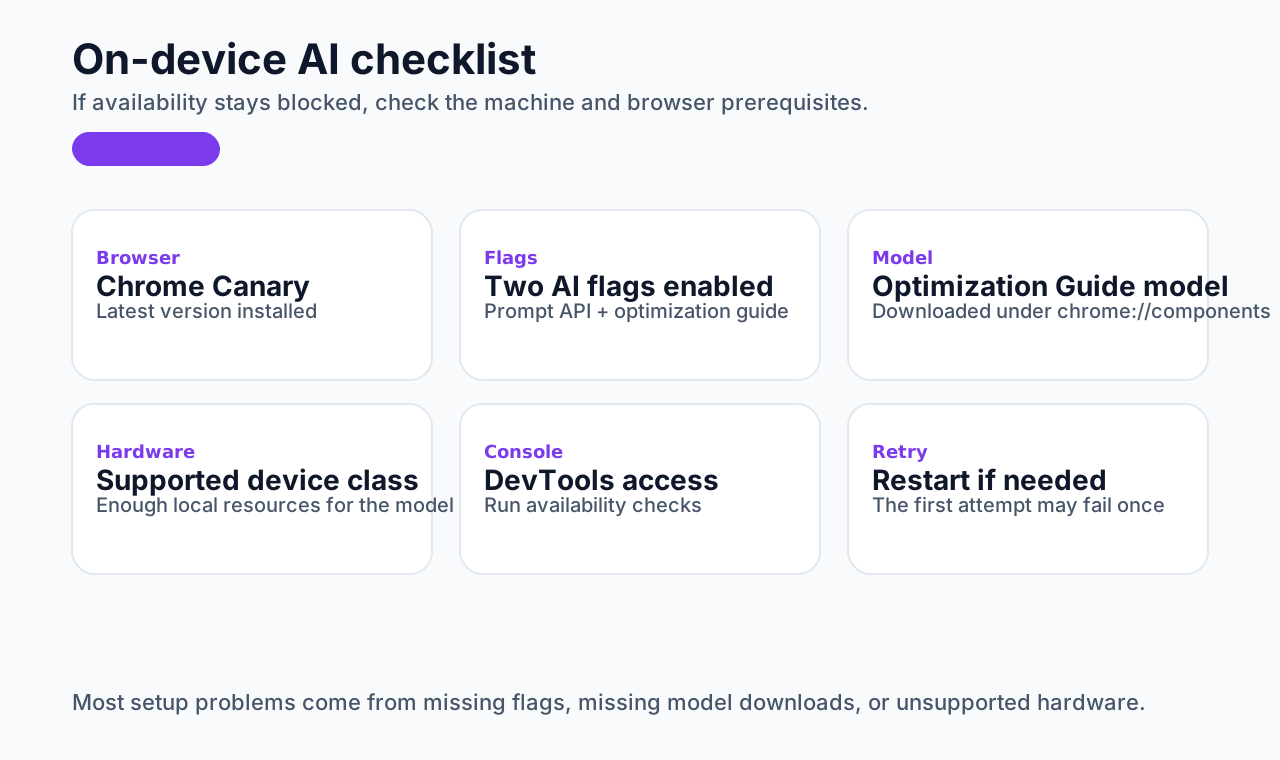
Then check whether Gemini Nano is downloading:
- Open
chrome://components - Look for
Optimization Guide On Device Model - Its version should be at least
2024.5.21.1031 - If no version appears, click
Check for update
After the download finishes, open DevTools again and rerun:
javascript
await window.ai.canCreateTextSession();If it returns "readily", Gemini Nano is ready.
Some environments may not show the component immediately. In that case, signing into a Google account, restarting the browser a few more times, and checking hardware requirements may help.
Using window.ai
If everything is set up correctly, open DevTools with F12, go to the Console, and start experimenting.
A quick check is to type window. and see whether ai appears in the suggestion list. If it does not, go back and re-check the setup steps.
Create your first session
You only need one command to begin a session with the model:
javascript
const chatSession = await window.ai.createTextSession();Do not forget the await.
There is also a createGenericSession() option, though the distinction may still be evolving.
Send a prompt
Use .prompt() on the session object:
javascript
const result = await chatSession.prompt("hi, what is your name");Again, it is asynchronous, so await matters.
Depending on the prompt and the hardware, the result may take from a few milliseconds to several seconds.
Read the result
javascript
console.log(result);Example output:
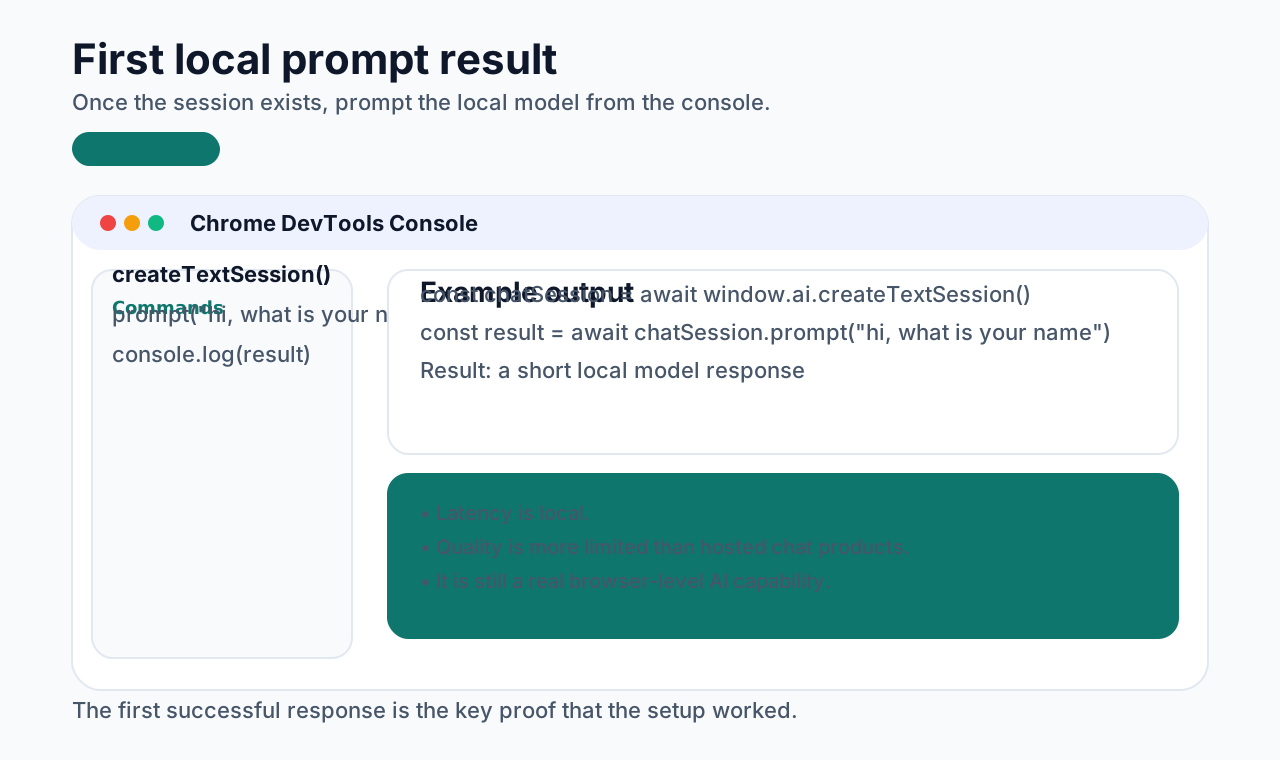
The quality may not be spectacular, but the fact that it works locally inside the browser is already interesting.
A reusable helper
Instead of typing several commands every time, you can define a helper in the console:
javascript
async function askLocalGPT(promptText) {
  if (!window.chatSession) {
    console.log("starting chat session");
    window.chatSession = await window.ai.createTextSession();
    console.log("chat session created");
  }
  return console.log(await window.chatSession.prompt(promptText));
}
Then you can simply run:
javascript
askLocalGPT("your prompt here");I personally like saving this in DevTools Sources > Snippets for quick access.
Is it actually useful?
That depends on what you compare it to.
If you compare it with Claude or ChatGPT, it is obviously much weaker. But for local experimentation and lightweight use cases, it is already very interesting.
Also note that it does not automatically remember previous conversation turns the way a hosted chat product does. If you want continuity, you need to include prior context in the next prompt yourself.
Is it fun?
Yes, pretty fun. Running a local AI model inside the browser is genuinely cool. It can answer simple coding questions and opens up some interesting frontend integration ideas.
For example:
javascript
askLocalGPT(`Summarize the following content: ${document.querySelector("main").textContent.toString()}`);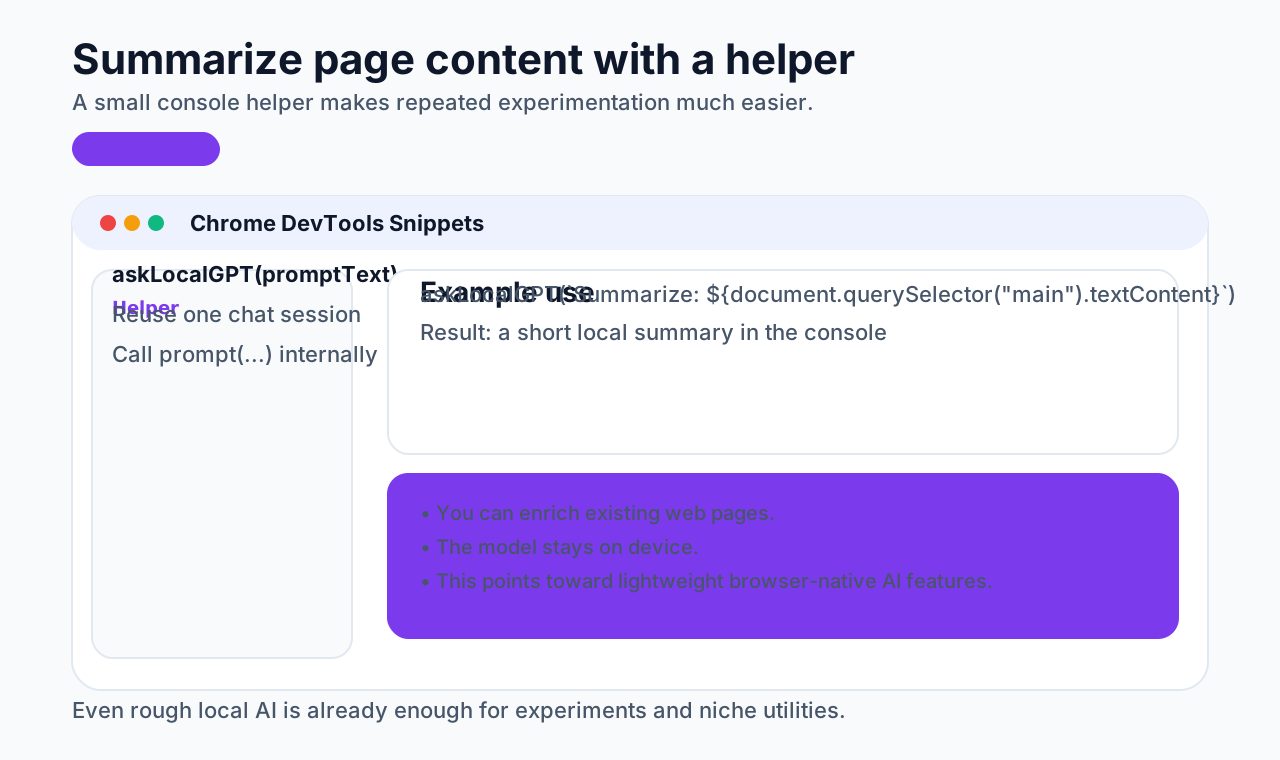
The results may still feel rough or incomplete, but the direction is exciting.
What could you build with it?
This is only scratching the surface of the new API, but it already suggests a lot of possibilities.
If browser-level AI becomes widely available, it could make it much easier to build lightweight custom assistants directly inside frontend applications, or to hand off text, image, and structured-data tasks to local models.
Closing
Running AI locally in the browser is an exciting new application scenario. It opens up a lot of possibilities for developers, especially for frontend-oriented workflows and product ideas.
There are still obvious limitations today, including fluency, capability, and performance. Even so, this clearly points toward a future where more browsers expose AI capabilities directly to the application layer.
If that trend continues, browsers may become powerful local AI platforms rather than just rendering engines, giving developers many more ways to build intelligent user experiences.