Skip to content
Native Capabilities in Tauri
Introduction to native capabilities
Tauri is a framework for building secure, small desktop applications by combining a web frontend with native system capabilities. It exposes a number of native features to the web application layer, including:
- File system access: read, write, and watch local files and directories
- System tray support: add tray icons and custom tray menus
- Local notifications: show native desktop notifications
- Clipboard access: read and write text or image data
- Dialogs and file pickers: open file dialogs, save dialogs, and message boxes
- Command-line arguments: read launch-time CLI arguments
- Global shortcuts: register system-wide keyboard shortcuts
- System information: inspect CPU, memory, network, and related system data
- Update checks: detect and prompt for application updates
These native capabilities make it possible to build web-based desktop apps that still feel well integrated with the local operating system.
This article focuses on one practical file-related example: implementing file download behavior for an image-slicing tool.
A practical scenario
Before wiring up native storage support, assume the application already has a page like this: an image-slicing tool where users upload an image and export sliced output files.
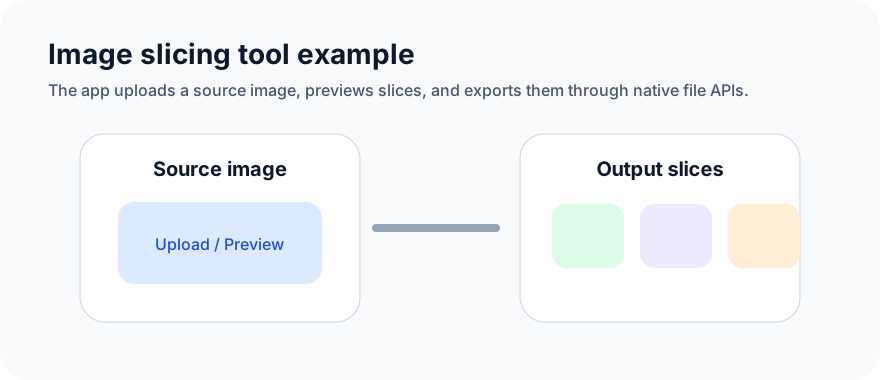
In a browser, file download often looks like this:
typescript
const downloadSlice = (sliceData: any, fileName: string) => {
  const link = document.createElement("a");
  link.download = fileName;
  link.href = sliceData;
  document.body.appendChild(link);
  link.click();
  document.body.removeChild(link);
};
That approach works in normal browser environments because it relies on the browser's <a> element download behavior.
In Tauri, however, it is better to use native capabilities. In this scenario the main modules involved are:
pathdialogfs
You also need to enable the relevant permissions in Tauri config before these APIs can be used.
Implement file download in Tauri
Update permissions
path
To enable all path APIs:
json
"path": {
  "all": true
}
dialog
The dialog allowlist includes options such as:
opensavemessageaskconfirm
For this example, everything is enabled:
json
"dialog": {
  "all": true,
  "ask": true,
  "confirm": true,
  "message": true,
  "open": true,
  "save": true
}
fs
For the filesystem, the example enables all APIs and allows access to all files:
json
"fs": {
  "all": true,
  "scope": ["**"]
}
After that, the app is ready to use native file APIs.
Download implementation
Because this feature needs to work in both browser and Tauri environments, the runtime is detected first:
typescript
if (window.__TAURI__) {
  // Tauri environment
} else {
  // browser environment
}
Because the image-slicing tool exports many images at once, ZIP packaging is also useful.
The high-level flow looks like this:
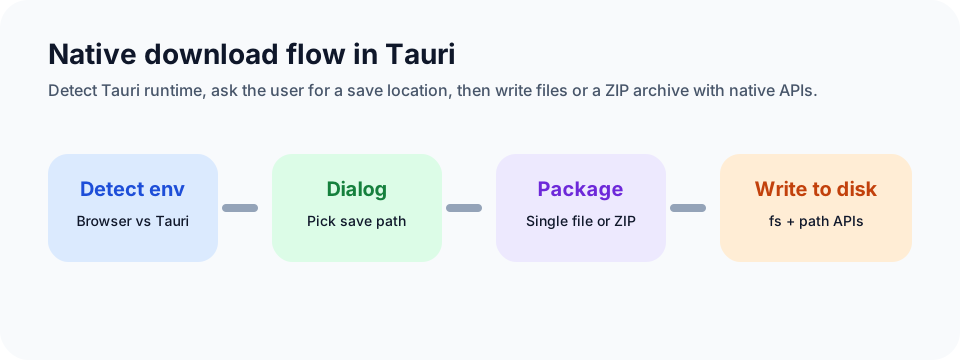
Implementation:
typescript
import { writeBinaryFile } from "@tauri-apps/api/fs";
import { path, dialog } from "@tauri-apps/api";
import JSZip from "jszip";
import dayJS from "dayjs";
import { FileBase64List } from "@/type";

export const downloadFileBase64 = async (data: any, fileName: string) => {
  if (window.__TAURI__) {
    const binaryString = atob(data.split(",")[1]);
    const len = binaryString.length;
    const bytes = new Uint8Array(len);
    for (let i = 0; i < len; i++) {
      bytes[i] = binaryString.charCodeAt(i);
    }
    try {
      const basePath = await path.downloadDir();
      let selPath: any = await dialog.save({
        defaultPath: basePath,
      });
      selPath = selPath.replace(/Untitled$/, "");
      writeBinaryFile({ contents: bytes, path: `${selPath}${fileName}` });
    } catch (error) {
      console.error(error);
    }
  } else {
    const link = document.createElement("a");
    link.download = fileName;
    link.href = data;
    document.body.appendChild(link);
    link.click();
    document.body.removeChild(link);
  }
};

export const downloadBase64FileWithZip = async (
  data: FileBase64List,
  callback: Function
) => {
  const zip = new JSZip();
  data.forEach((item) => {
    zip.file(item.name, item.data.replace(/^data:image\/(png|jpg);base64,/, ""), {
      base64: true,
    });
  });
  const date = dayJS().format("YYYYMMDDHHmmss");
  const basePath = await path.downloadDir();
  let selPath: any = await dialog.save({
    defaultPath: basePath,
  });
  selPath = selPath.replace(/Untitled$/, "");
  zip.generateAsync({ type: "blob" }).then((content) => {
    let file = new FileReader();
    file.readAsArrayBuffer(content);
    file.onload = function (e: any) {
      let fileU8A = new Uint8Array(e.target.result);
      writeBinaryFile({ contents: fileU8A, path: `${selPath}IMG_${date}.zip` });
      callback();
    };
  });
};

export const downloadFileBase64List = async (
  data: FileBase64List,
  callback: Function
) => {
  if (window.__TAURI__) {
    downloadBase64FileWithZip(data, callback);
  } else {
    data.forEach((item) => {
      downloadFileBase64(item.data, item.name);
    });
  }
};
Summary
This example covers a practical native-capability workflow in Tauri: using the file system, dialogs, and path APIs to implement reliable file download behavior.
It is also a good introduction to how Tauri permissions, native modules, and runtime branching work together.
Tauri's built-in native capabilities are powerful, but there are limits. If you need more advanced behavior, you may eventually move into IPC and custom native extensions. Even so, the file download example already captures the basic pattern for connecting a web UI to the native desktop layer.
Source code
https://github.com/Xutaotaotao/XTools/blob/feature/tauri/src/pages/imageSlicing/index.tsx