Skip to content
Setting Up a Tauri Project
Note: the example environment used in this article is macOS.
Terminal prerequisites
Before starting a Tauri project, you need Rust and the required system dependencies.
References:
- https://www.rust-lang.org/learn/get-started
- https://tauri.app/v1/guides/getting-started/prerequisites
Initialize the project from the CLI
bash
pnpm create tauri-appFollow the prompts to enter:
- project name
- package name
- frontend language
- package manager
- frontend UI framework
- programming language
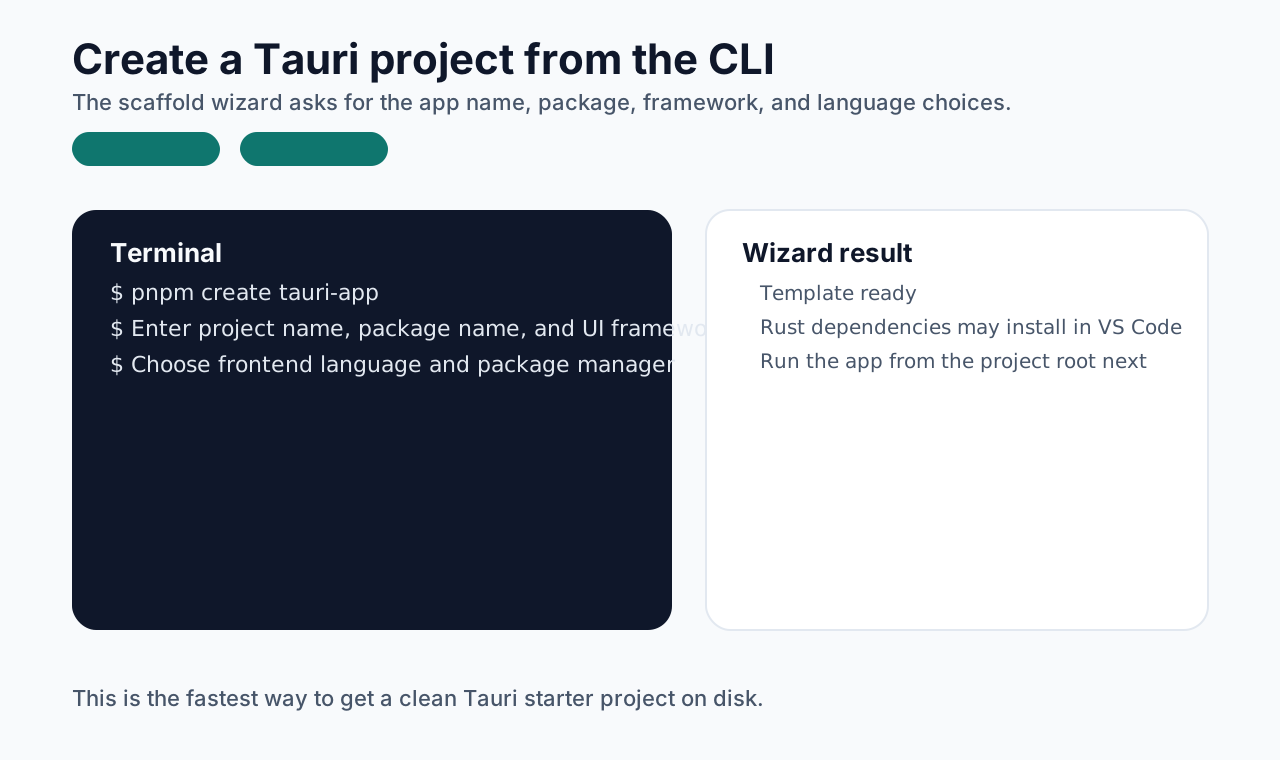
If your VS Code has both rust-analyzer and the Tauri extension installed, opening the project will also trigger the download of Rust-related dependencies automatically.
Once that is done, install the frontend dependencies and start the project from the root directory. The first startup may take a while because it needs to download and compile a number of files.
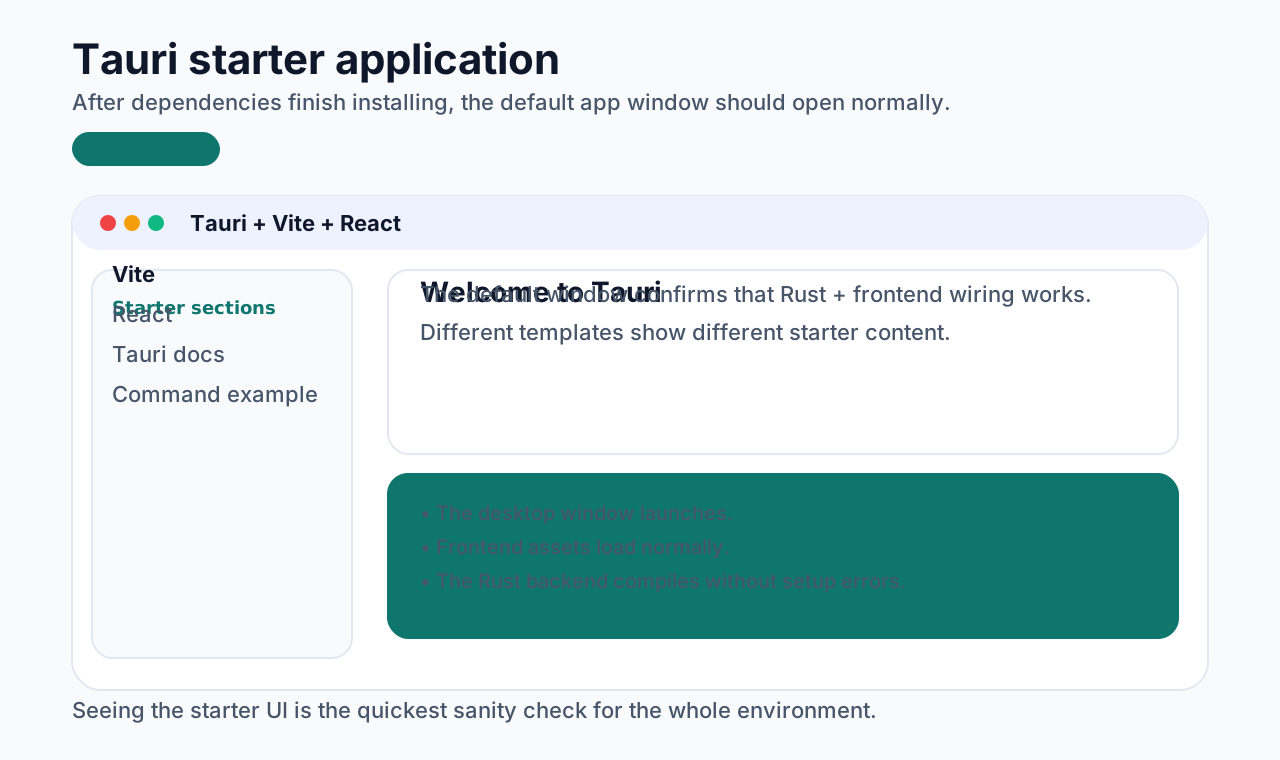
If everything goes well, you should see the starter UI. In this example, the chosen stack is Vite + React, so the default Vite + React screen appears.
Project structure
bash
[tauri-app] # project name
├─ [node_modules] # frontend dependencies
├─ [src] # frontend source
├─ [src-tauri] # Tauri source
│    ├─ [icons] # app icons
│    ├─ [src] # native Tauri source such as menus, tray, and plugin config
│    ├─ [target] # build output
│    ├─ build.rs # Tauri build script
│    ├─ Cargo.lock # exact dependency snapshot
│    ├─ Cargo.toml # Rust project manifest
│    └─ tauri.conf.json # Tauri app config such as window size, name, permissions
├─ index.html # main entry page
├─ package.json # frontend package config
├─ tsconfig.json # TypeScript config
├─ vite.config.ts # Vite config
└─ ... # others
Packaging and build
Here we only cover the simplest build flow. This does not involve signing yet. The goal is to understand the overall packaging path first.
Run:
bash
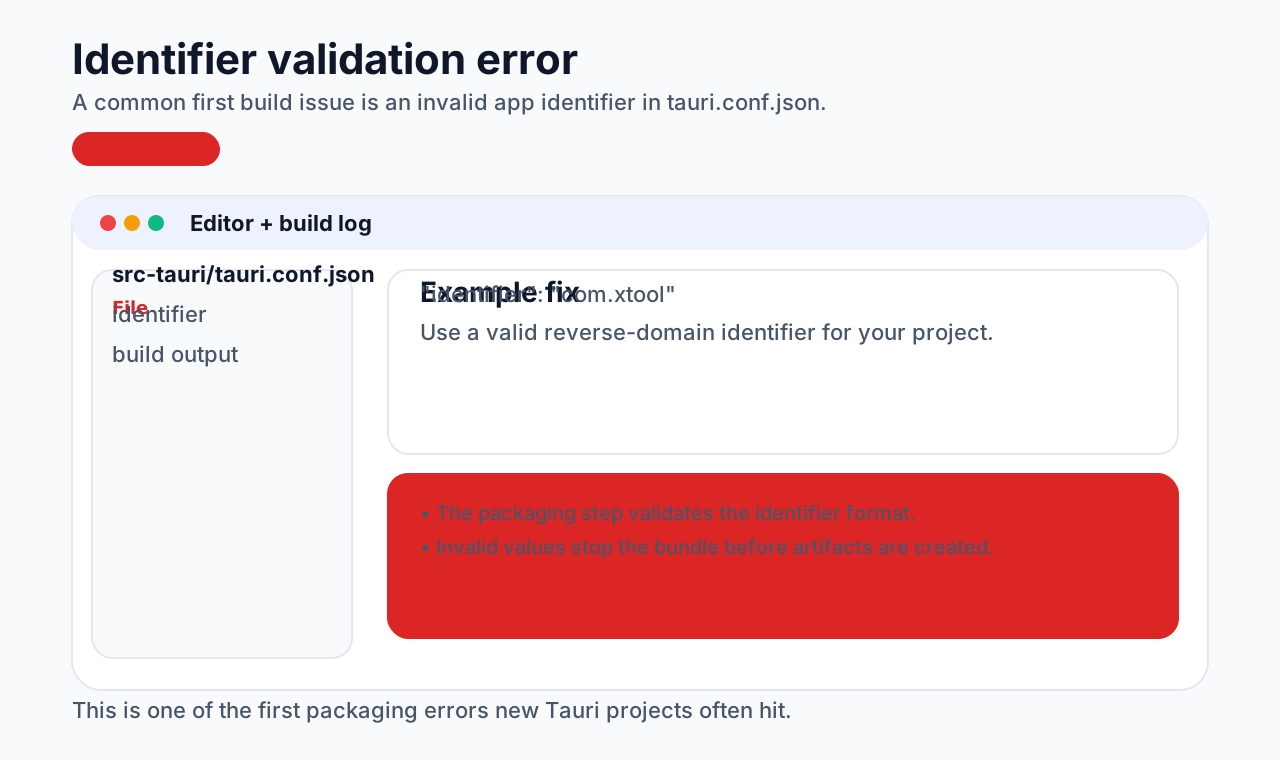
pnpm tauri buildYou may hit an error that requires editing src-tauri/tauri.conf.json and changing "identifier" to something valid such as "com.xtool". You should use an identifier that fits your own project.
The first build can also take a while because of dependency downloads and compilation.
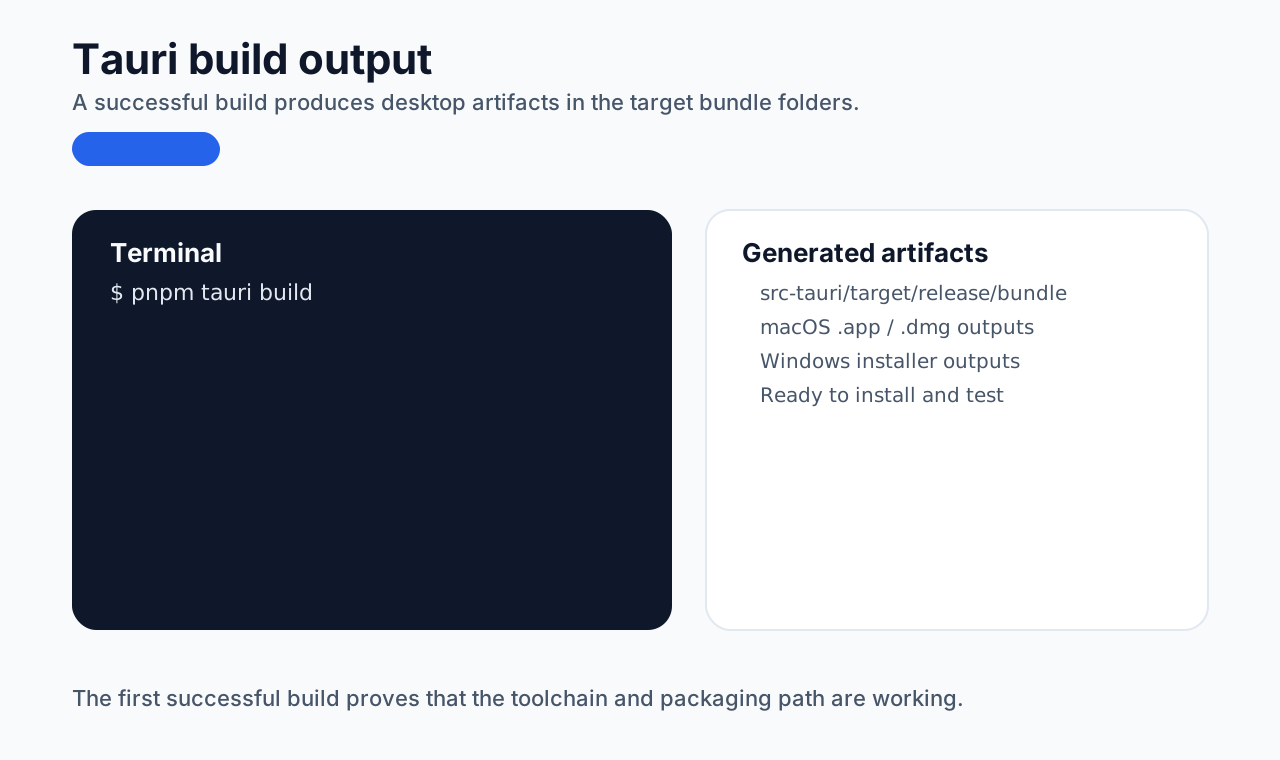
After the build succeeds, the installer package appears in the build output directory and can then be installed and used.